Trips and the Blueprint
A trip is the container for everything about one journey. Create one from the home screen with an origin, destination, and dates; it is stored locally in SQLite on your device.
Editing and archiving a trip
Section titled “Editing and archiving a trip”Plans move. Edit trip opens a dialog to fix a trip’s destination, dates, or name — your imported documents, confirmed facts, and plans all stay exactly where they were.
When a trip is over, Archive tucks it out of the way without deleting anything, and Unarchive brings it straight back. Archived trips are hidden by default; a Show archived / Hide archived toggle on the home screen reveals them so you can reopen one whenever you need it.
The Blueprint
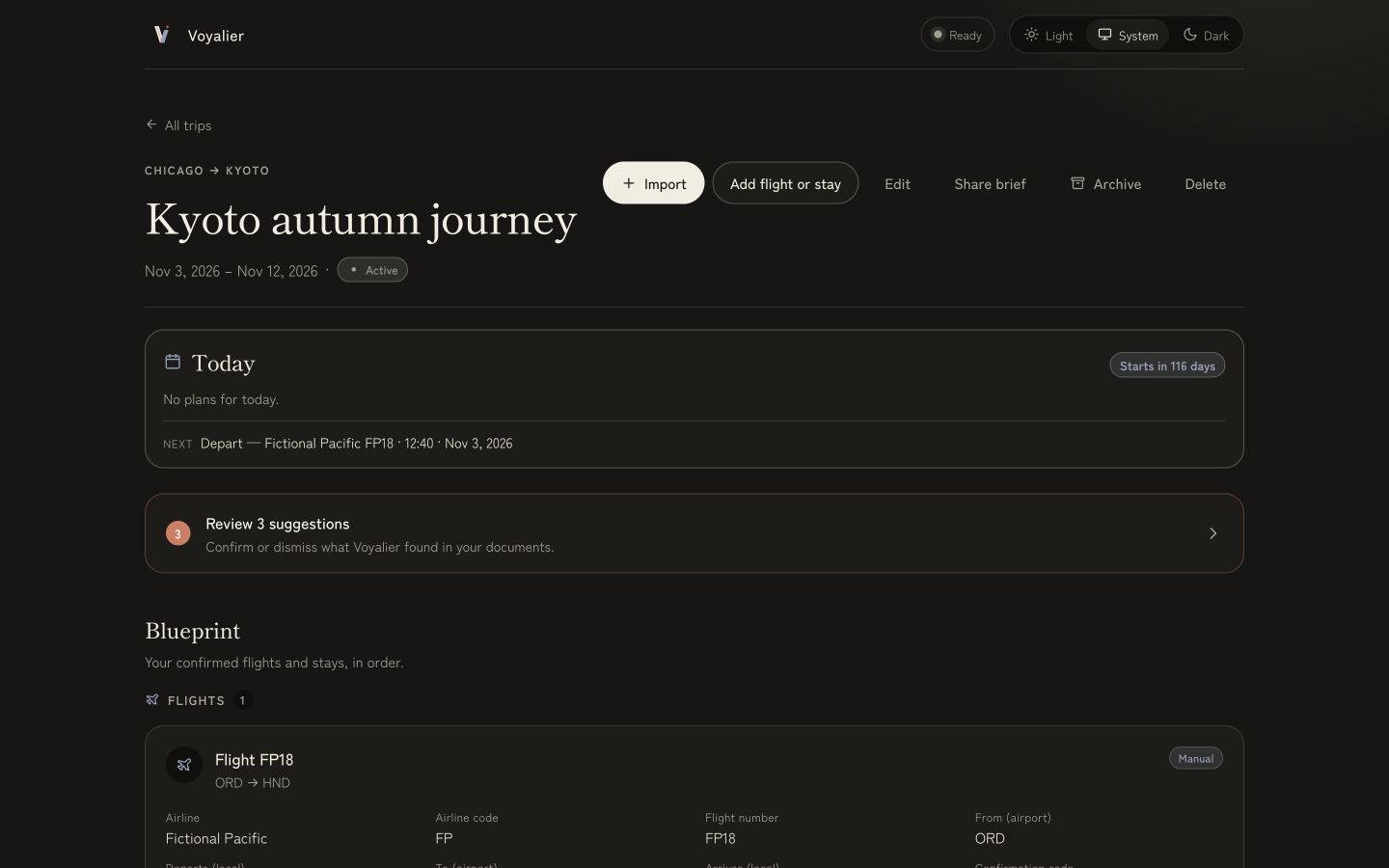
Section titled “The Blueprint”Inside a trip, the Blueprint is a deterministic view of your confirmed flights, stays, trains, coaches, ferries, and hire cars in itinerary order. It is built only from facts you have confirmed — never from a model — so it always reflects exactly what you have entered or reviewed.
Two deterministic checks run over the Blueprint and surface as advisory findings, never as blockers:
- Itinerary conflicts — overlapping flights, overlapping lodging, and nights with no lodging coverage.
- Readiness — a plan-completeness rollup (schedule conflicts, lodging coverage, pending items to review) with an overall status. Sourced readiness (advisories, entry rules, health) is covered in Readiness and official advice.
Adding reservations
Section titled “Adding reservations”You can add a flight, stay, train, coach, ferry, or hire car two ways:
- Manually, by entering its details directly.
- By importing a confirmation and reviewing what Voyalier extracts — see Importing confirmations.
Imports accept a pasted confirmation or a local .eml/.html/.txt file you
pick or drag and drop; either way it is read on your device and nothing is
uploaded.
The “Today” summary
Section titled “The “Today” summary”At the top of an active trip, an offline Today summary shows where the trip stands right now: its phase (upcoming, active, or completed, with day counts), today’s departures, arrivals, check-ins, and clearly separate traveler-authored plans, plus the next anchor coming up. It is computed from local records against the device’s local calendar date — no network, no model. It refreshes across local midnight and when the visible app resumes or receives focus. Clock and time-zone changes are checked while visible; unchanged dates do not trigger a new projection request. The previous day’s rows stay hidden during refresh or failure, with retry available after a failure. A floating event date remains exactly as entered; this does not infer the destination’s current calendar date.
Each row and the next anchor offers Show in Plan. A confirmed departure, arrival, or stay opens its exact fact; a traveler-authored activity or transfer opens its exact plan row. The target stays in entry-scoped memory rather than the URL. If the record was removed before the action completes, Voyalier opens Plan and says the exact item is no longer available.
Rows with source identity carry Confirmed evidence or Your plan, including the next anchor. A plan label records the traveler’s intention; it does not establish a reservation. Older responses without source identity remain readable without a guessed evidence label.
If something slips
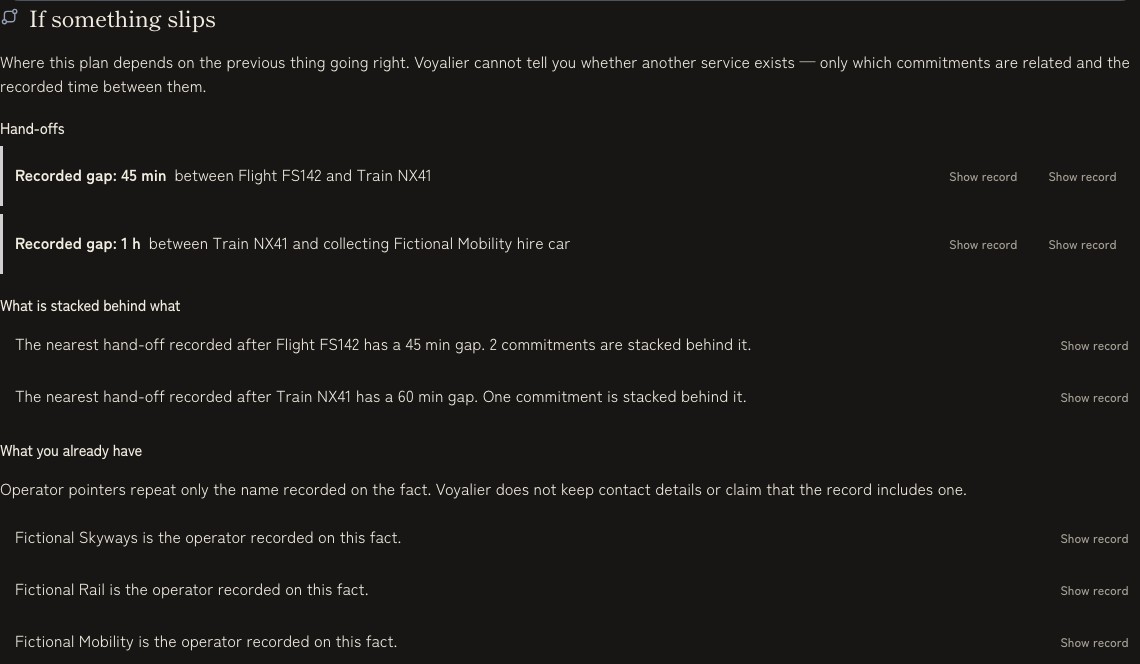
Section titled “If something slips”The disruption view is another deterministic projection of the confirmed plan. It shows the time between related transport commitments, which later commitments are stacked behind a leg, and operator names already present in your own records. That can include a nearby rental pickup or return as well as the next scheduled leg. Show record returns to the exact approved local fact behind any of those rows.
This is not delay prediction or live operations data. Voyalier does not know whether a service is late, whether another departure exists, or whether an operator can help. It shows what the local plan depends on and where the traveler’s existing evidence lives.
Find in this trip
Section titled “Find in this trip”Find in this trip searches across your imported documents, confirmed plans, and saved research as you type. It is relaxed on purpose: partial words work, and any word in your query can match — so “shuttle code” surfaces a result mentioning either. Each match says whether it is an imported document, a confirmed plan, or a research resource instead of lending one source another’s authority.
Matching terms are offered as suggestion chips you can tap to autofill the query. Copy reuses the visible value (a confirmation code, a hotel name) without retyping; Show source returns to the exact local document, confirmed fact, or saved-reading row. That return does not reopen a sealed document body or fetch a saved page. If its local list is unusually slow, Voyalier says it is still loading and completes the return when the row is ready. If the row was removed after the search, Voyalier opens the right section and says the exact source is unavailable. The search query and source identifier stay out of the URL. It is purely local — nothing leaves your device.
The top-bar Search workspace action extends that local search across every trip and also includes trip notes, saved places, and manual activities/transfers. Each result states its trip and source type; pending extraction candidates stay excluded until reviewed.
If you reload while a trip is open, Voyalier re-enters that trip and returns to the selected Plan, Prepare, Discover, or AI section. The re-entry hint is only a trip id in session storage; choosing All trips clears it.
Sharing a redacted brief
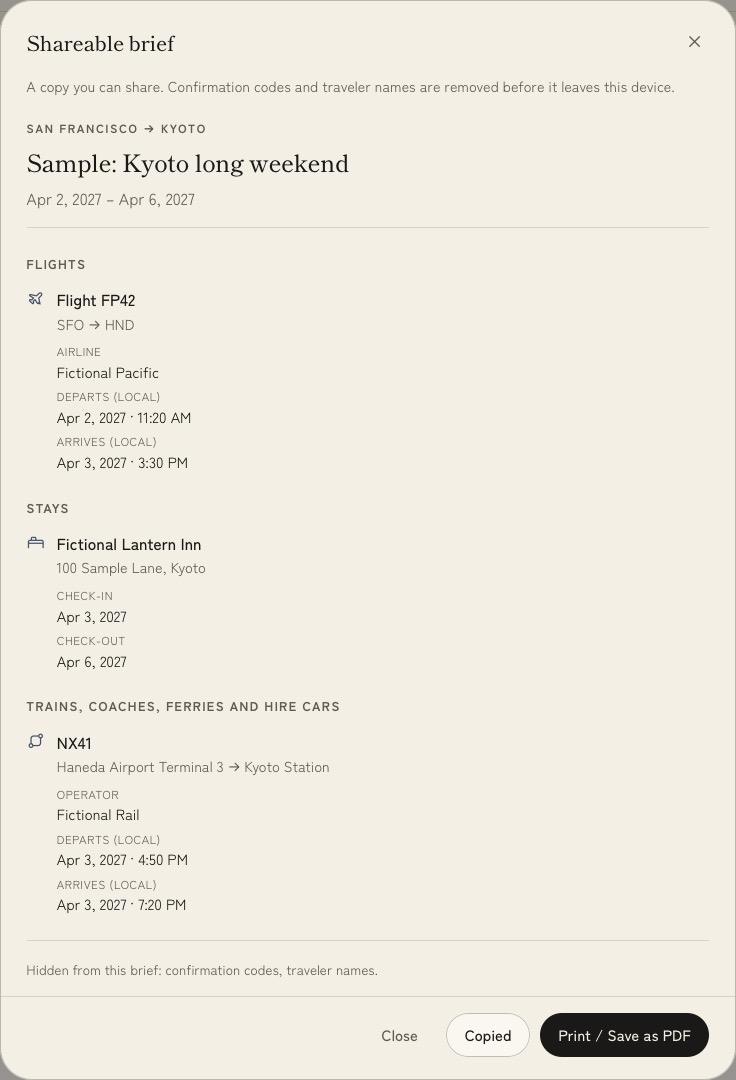
Section titled “Sharing a redacted brief”Share brief produces a print-friendly summary of confirmed flights, stays, surface journeys, and traveler-authored plans, including undated ideas. Their titles and optional locations are shareable; private plan notes stay excluded. You can print it, save it as a PDF, or choose Copy brief for readable plain text. Confirmation codes and traveler names are excluded before the interface receives the brief; the copy formatter then reads an allowlist that also has no imported text, research resources, or private plan notes.
If the browser or operating system denies clipboard access, Voyalier says so and keeps Print / Save as PDF available instead of claiming the copy succeeded. After a successful copy, system clipboard history, device sync, or a clipboard manager may retain the redacted text. Review the audience and clear the clipboard when that matters.