
Export & save
You’ve finished arranging, editing, or signing a workspace and want the finished file.
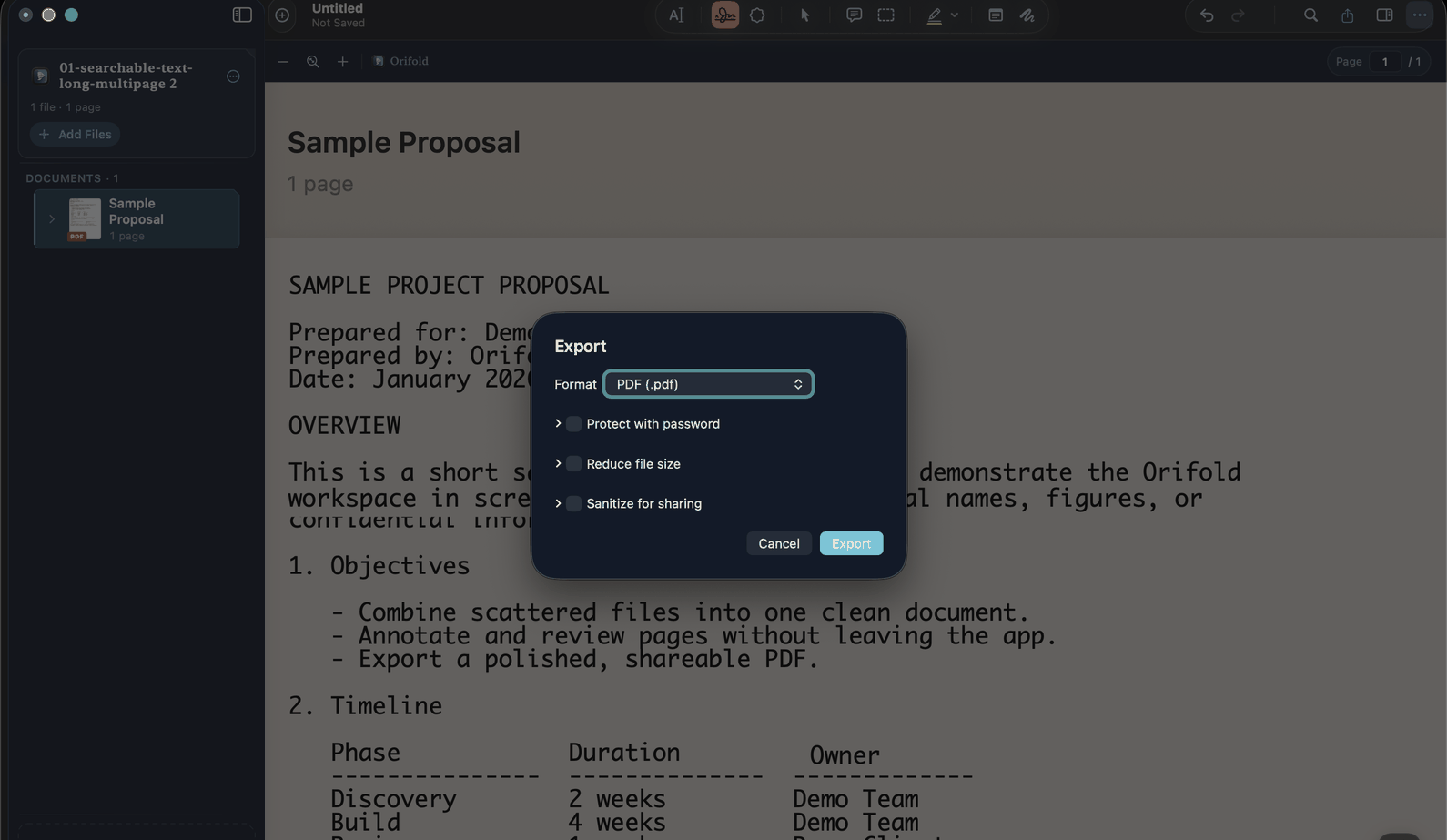
- Click Export in the toolbar, press ⌘E, or choose File → Export.
- Choose a format: PDF, DOCX, Markdown, plain text, HTML, PNG pages, or JPEG pages. Printing remains in File → Print or ⌘P.
- For PDF, optionally turn on password protection, file-size reduction, sanitize-for-sharing, or an imposition layout. The extra settings appear directly below the option you enabled.
- Pick a location in the save panel and confirm — Orifold asks where the file goes before it starts any work.
Password protection, file-size reduction, sanitize, and imposition all run after you’ve chosen the destination, with a progress indicator and a working Cancel. The window stays responsive while they work.
Where did my file go?
Section titled “Where did my file go?”Exactly where you chose in the save panel — there’s no hidden folder or upload step. If you’re not sure where you saved it, check the location shown in the save dialog before you clicked Save, or search Spotlight for the filename.
Why it matters: PDF output is structurally checked before publication. That check does not establish the correctness of every form answer, attachment, visual edit, or reading order. If export fails, see Export & save problems.

Sharing a final copy? Reopen the exported file and verify form answers before sharing. Form serialization is still under investigation; locking answers does not replace verification.
What you should see
Section titled “What you should see”A new file at the location you chose, in the format you picked, which you should reopen to confirm the content and layout you need.
Related
Section titled “Related”If something went wrong
Section titled “If something went wrong”Output and cancellation boundaries
Section titled “Output and cancellation boundaries”PNG and JPEG page exports stage their output and publish it as a folder transaction. Replacing an existing destination preserves the previous result until the staged set is ready; a failure should leave no partial published set. Inspect the final folder rather than a progress label.
Cancellation is checked before a print handoff or final publication. Once the system print panel or a completed file handoff owns the operation, use that surface’s controls. Saved multi-page layout selection is restored with the workspace; verify the chosen layout and preview before printing or exporting.