
Reader Mode
You’re reading or studying rather than editing, and want text editing and signing locked out of the way.
- Click More (⋯) in the toolbar, then Reader Mode, or press ⌘⇧R.
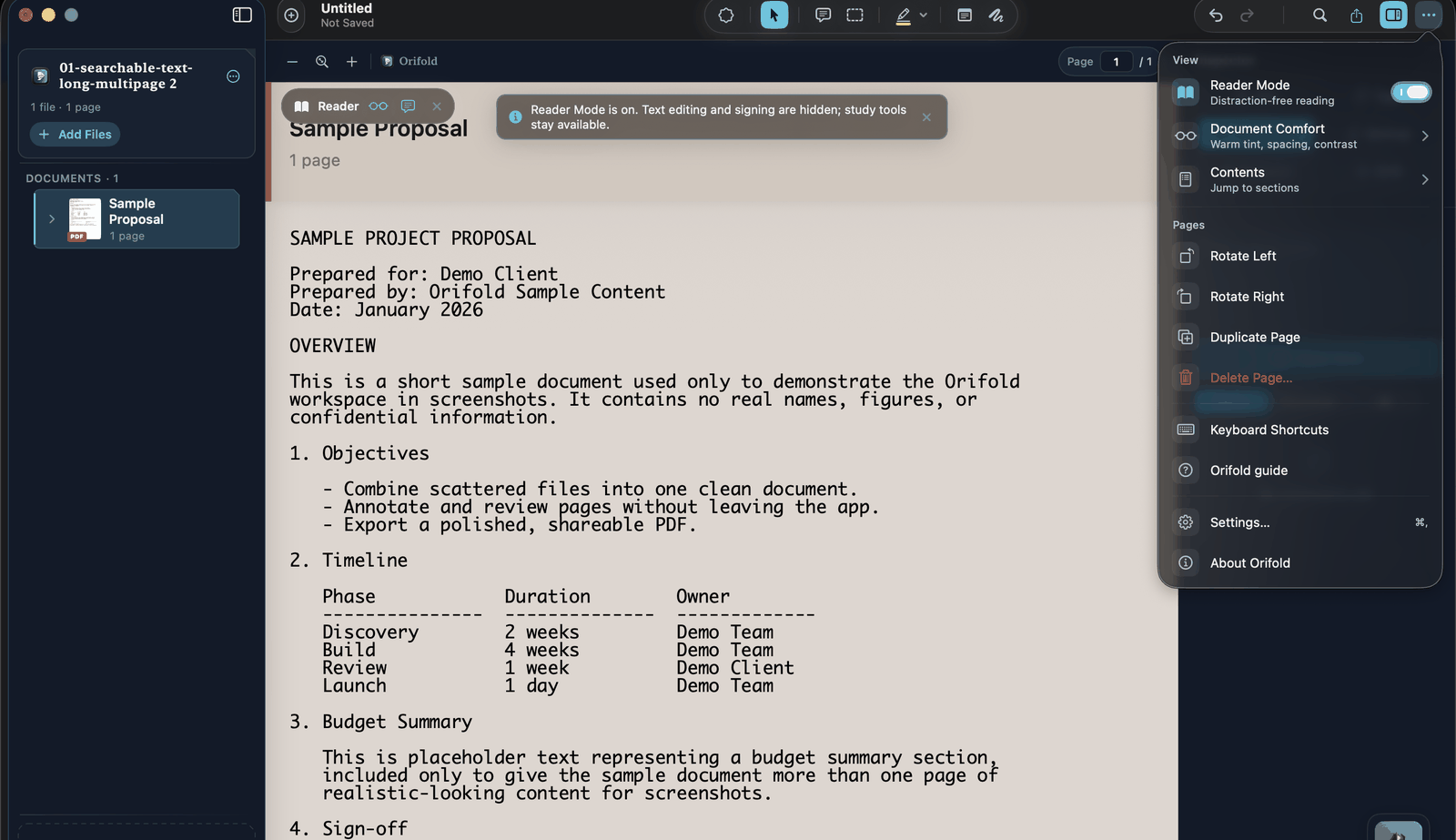
Reader Mode doesn’t hide the sidebar or toolbar — it locks out text editing and signing specifically, to reduce accidental changes from those tools. PDF form widgets have a separate boundary; Reader Mode is not a document lock. A Reader pill appears above the page as a reminder, with quick access to comments and Document Comfort.
Form and saving boundary
Section titled “Form and saving boundary”Interactive PDF form widgets may still change while Reader Mode is active. Reader Mode form-answer serialization remains under investigation. Keep the original and verify every answer after reopening a saved copy.
What you should see
Section titled “What you should see”A Reader pill appears above the page. Text editing and signing tools are locked (they’ll explain why if you try to use them); study tools — comments and Document Comfort — stay available from the pill. Press ⌘⇧R again, or use the pill’s close button, to exit.