
Import files
You have one or more files — PDFs, images, a Word doc, a CBZ comic, a scan — that need to become part of a workspace.
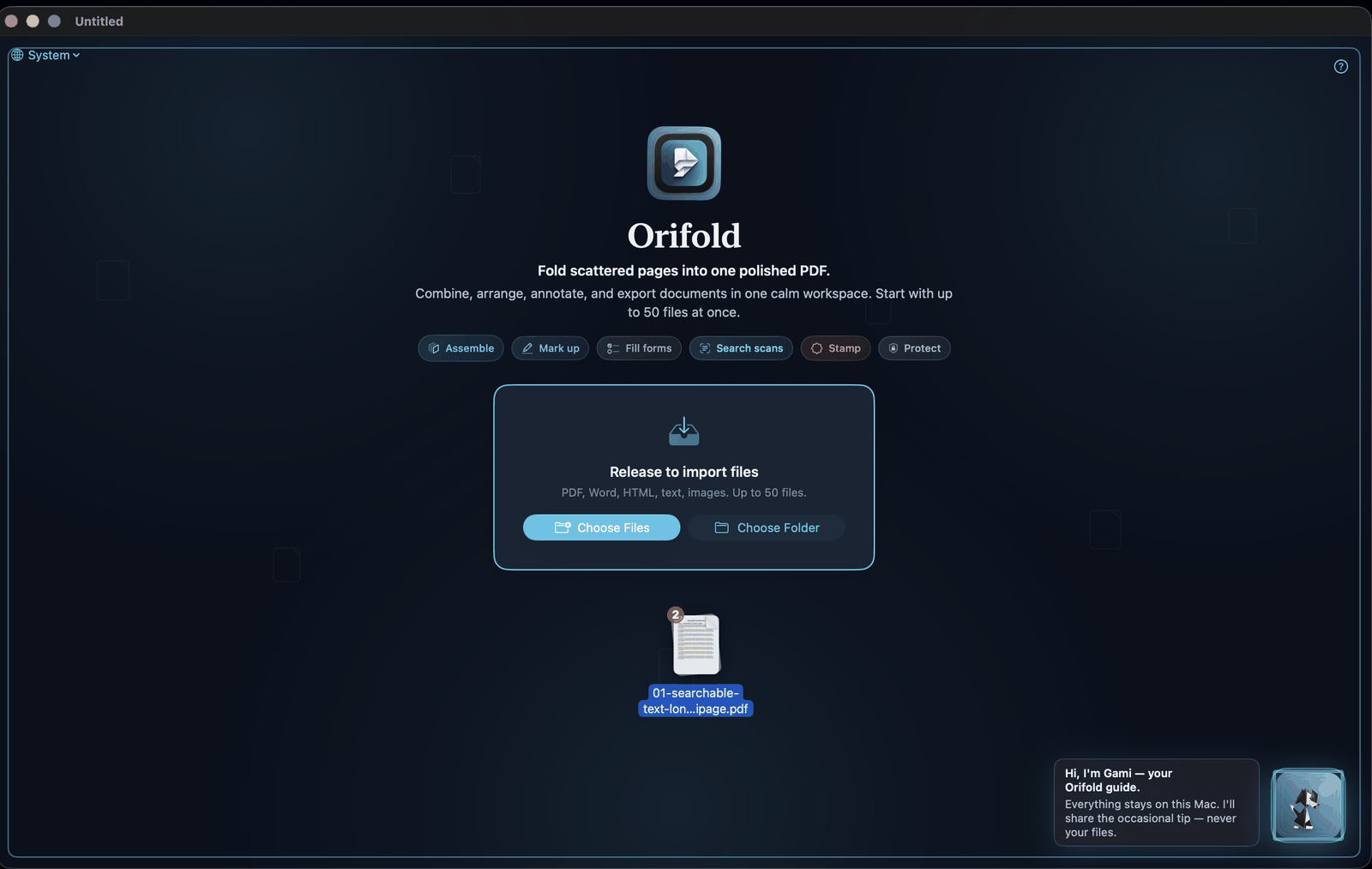
- Drag files onto the empty-state screen or an open workspace, or
- Use Add Files (⇧⌘O) and select one or more files, or
- Use Add Folder to Workspace… to scan a folder for supported files, with up to 50 imported per batch.
Supported formats
Section titled “Supported formats”PDF, Word and OpenDocument text, HTML, Markdown, plain text and source files, CSV, JSON, XML, spreadsheets, presentations, EPUB, SVG, common image formats (PNG, JPEG, and others), and CBZ comic-book archives.
CBZ comics become PDFs
Section titled “CBZ comics become PDFs”Drop a .cbz file in like any other import. Orifold reads its image entries directly from the ZIP-compatible archive, sorts filenames in natural order (page2 before page10), and fits each image onto its own PDF page. Non-image entries and macOS metadata are ignored; nothing is extracted into a folder on disk.
For a bounded, predictable conversion, a CBZ can contain up to 1,000 image pages and the archive is subject to Orifold’s 100 MB package limit. An archive with no supported images, an unreadable image entry, or too many pages gets a specific error instead of a blank PDF.
CBZ import ships in v0.10.0.
Each import batch accepts up to 50 files. Wait for it to finish, then use Add Files again to select the remaining files and add them to the same workspace. For a folder with more than 50 supported files, Orifold offers to import the first 50; select the remaining files in later batches rather than importing the same folder again.
Folder scanning also has a safety bound for very large directory trees. If the scan is truncated, Orifold warns that some files were skipped. Choose a smaller subfolder or select those files with Add Files; a folder import does not guarantee that every file in a very large tree was scanned.
When a folder import finishes, Orifold summarizes how many files it imported — and VoiceOver announces the same number. The count is the number that actually landed in the workspace, not the number it set out to try, so skipped or unsupported files are never counted in.
If a PDF is corrupted and the native reader gives up on it, Orifold tries a qpdf recovery pass automatically — files that Preview won’t open are often worth trying here.
What you should see
Section titled “What you should see”Every imported file appears as its own document in the sidebar, ready to reorder, edit, or merge with the others.
Related
Section titled “Related”If something went wrong
Section titled “If something went wrong”Batch and format boundaries
Section titled “Batch and format boundaries”Choose Files, Choose Folder, and drag/drop share a limit of 50 files per import batch, including files supplied through encrypted-file prompts. Wait for that batch before adding another. An RTFD package counts as one document, rather than a directory of separate attachments. Office and text imports are converted into PDFs; they are not native Office editing sessions.